Post Scan
Report Parameters
|
Field |
Description |
|---|---|
|
Report Name |
The name of the report. |
|
From Date |
The date from when the report must be generated. |
|
To Date |
The date until when the report must be generated. |
|
Department |
A list of active post type departments defined by the property. |
|
Category |
A list of all the available categories for the report selection. All post type categories created in the Category screen (Settings à Setup à General à Category) will be displayed as options in the drop-down list. Users can select multiple or all categories in the drop-down list. By default, the All option will be selected. |
|
Post Type |
A list of all the available post types for the report selection. Users can also search for and filter options in the drop-down list by entering the preferred characters. |
|
Operators |
Select the preferred operator from the list. Users can also search for and filter options in the drop-down list by entering the preferred characters. |
|
Building |
Select preferred building from the list. Users can select multiple or all the available buildings from the list to be displayed in the report generated. |
|
IssuerTypes |
Select the preferred issuer type from the list. Users can select multiple or all the types from the list to be displayed in the report generated. |
|
Search box |
Search for and select a single or multiple rooms to be considered when the report is generated. |
|
Posting Type |
Select the preferred posting type from the drop-down list. The available options include the following:
|
|
Post Status |
Available options include the following:
|
|
Other Filters |
|
|
Posting Reference Number Like |
Enter a posting reference number. |
|
Amount |
Enter an amount. |
|
Sort Order |
Available options include the following:
|
|
Operators |
Available options include the following:
|
|
Include Comments? |
When enabled, the report includes the comments entered by the user. |
|
Include A/R# |
When enabled, the report includes the accounts receivable account numbers. |
|
Include Reservation Confirmation #? |
When enabled, the report includes reservation confirmation numbers. |
|
Authorizer Name |
When enabled, the report includes authorizer names. |
|
Export Data |
This drop-down menu next to the Generate button allows users to directly export data in (.xlsx) or (.csv) format without having to generate the report. The following options are displayed when the drop-down menu is clicked:
When users select any one of the options from the menu, the Excel file will be automatically downloaded and saved to their local drive. This exported data will be based on the report parameters that the user has selected for the report. To view comments entered for a posting in the property’s local language in the exported file, the user must configure language settings in the Excel application (File à Options à Language à Add a Language). |
Sample Report
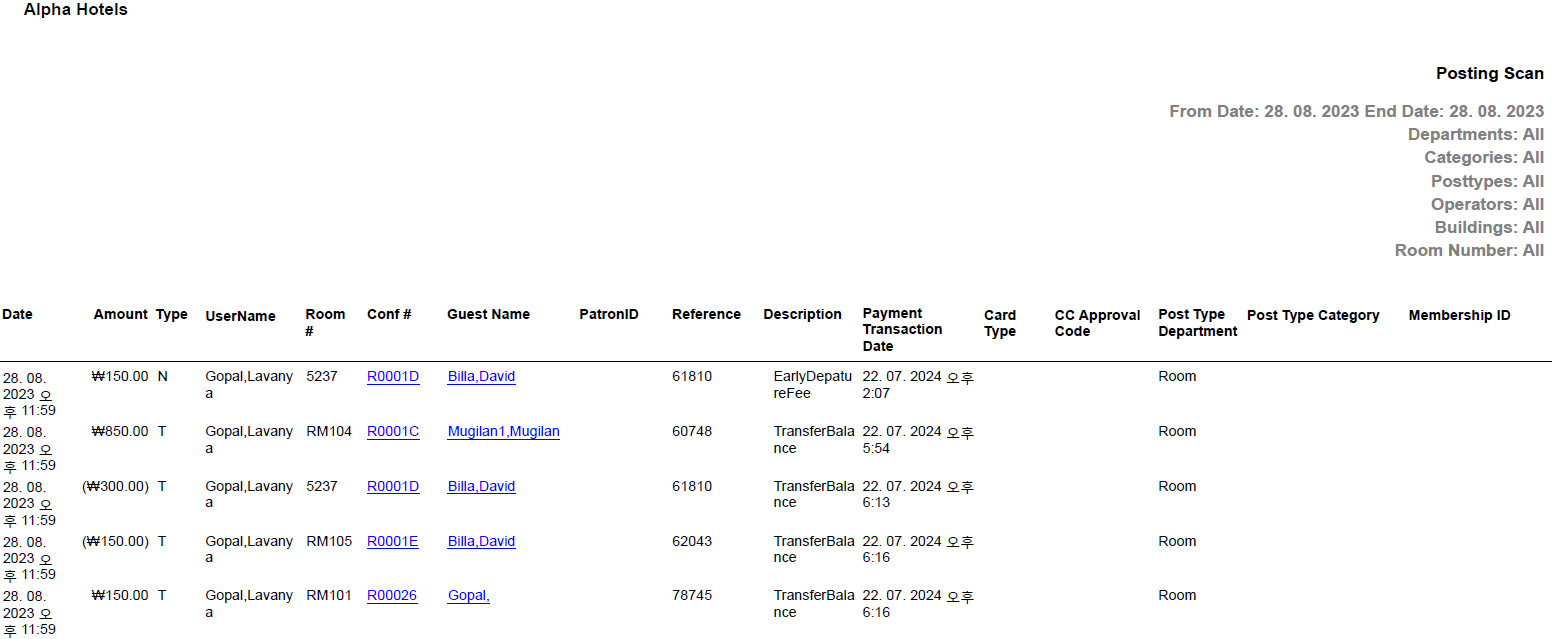
Report Fields
|
Field |
Description |
|---|---|
|
Date |
The date selected in parameters. |
|
Patron ID |
The patron ID of the guest. |
|
Amount |
The value of posted charge amount. |
|
Type |
Revenue type for which revenue postings have occurred for the current/selected date and user. |
|
ID |
The user ID of the user who made the posting. |
|
UserName |
The name of the user. |
|
Room # |
The room number of the guest. |
|
Conf # |
The reservation confirmation number. |
|
Guest Name |
The last name and first name of the guest added to the reservation. |
|
Reference |
The reference number associated to the posting. |
|
Description |
Description about the revenue post type. |
|
Payment Transaction Date |
The date when payments were processed or completed for each posting. |
|
Total |
Sum of all postings for the date. |
|
Card Type |
Credit card type. |
|
CC Approval Code |
The approval code generated for the transaction. |
|
Post Type Department |
The post type department associated with the selected post type. |
|
Post Type Category |
The post type category associated with the selected post type. |
|
A/R # |
The A/R account number of the customer. This column will appear only when the Include A/R# flag is enabled. |
|
Confirmation# |
The confirmation number of the reservation. This field will appear only when the Include Reservation Confirmation #? flag is enabled. |
|
Authorizer |
The name of the authorizer. This field will appear only when the Authorizer Name flag is enabled. |
|
Comments |
Comments entered by the user. This field will appear only when the Include Comments? flag is enabled. |
|
Overall Total Postings |
The total number of postings made in the selected date range. |
|
Total |
The total amount posted. |
|
Membership ID |
The member ID of the guest. |
|
Note: Report considers Posted Rates against the rooms |
|